Free · No sign-up · Nothing is uploaded
Blur face online: automatic face blur
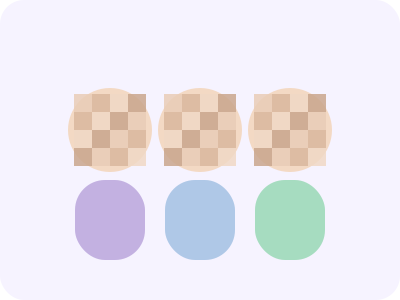
Blur face online in seconds: upload a photo and this free tool finds every face and blurs or pixelates it automatically, group photos included. Click a face to keep it sharp, then download.
Drop a photo here
Group photos work too — up to 20 faces.
Runs in your browser · Photo never leaves your device
How to blur a face in a photo
Detection uses Google's MediaPipe Face Landmarker, running on your device.
- 1
Upload a photo
JPG, PNG or WebP. Up to 20 faces are detected.
- 2
Pick blur or pixelate
Set the strength. Click any face to toggle it.
- 3
Download
Save the blurred photo as a PNG.
Why blur faces online in your browser
Most online blur tools upload your photo to a server. This one detects and blurs faces on your own device, so photos of kids, crowds or private events never leave it.
Use it to anonymize photos before posting, protect bystanders or censor screenshots.
When to blur faces before sharing photos
Blurring is good practice whenever someone in a photo hasn't agreed to be shared — bystanders at events, children at school activities, or people in the background of a street photo. Many platforms and workplaces also expect faces to be hidden in screenshots of chats or video calls.
Choose pixelate for a clearly censored look and blur for a softer result that keeps the photo pleasant. Set the strength high when anonymity matters: light blur can sometimes be partly recognized, especially for people you know.
Faces that are very small, turned sideways or covered by sunglasses and masks can be missed by detection. Check the preview before downloading, and use a higher-resolution photo if a face wasn't found.
Because the tool works offline after the first load, you can blur face online even on a slow connection: once the model is cached, nothing else needs to download. Large photos are resized to 2000 pixels on the longest side before blurring, which keeps the browser fast while staying sharp enough for social media and documents.
Blurring also helps with documents. Before sharing a screenshot of an ID, a team photo or a classroom picture, hide every face that isn't yours to share. The download keeps the original framing, so the image still makes sense to whoever receives it, and you can switch between blur and pixelate until it looks right.
Blur face online FAQ
Is my photo uploaded?
No. Face detection and blurring run entirely in your browser.
Can the blur be reversed?
Strong blur and pixelation remove detail permanently from the downloaded image. Use a high strength for real anonymization.
A face wasn't detected — what can I do?
Very small, side-on or heavily covered faces can be missed. Try a higher-resolution photo.
Does it work on screenshots?
Yes, any JPG, PNG or WebP image works, including screenshots of video calls.
Is there a watermark?
No. The downloaded PNG has no watermark and keeps your photo's resolution up to 2000 pixels.
More from StyleMirror
All free toolsSee a new look on your own photo
Preview any of 65 hairstyles on your selfie with the AI hairstyle changer.
Try a hairstyle